

User Guide
Back Up and Restore Settings
Save your Hepi settings to your account and restore them on any device.
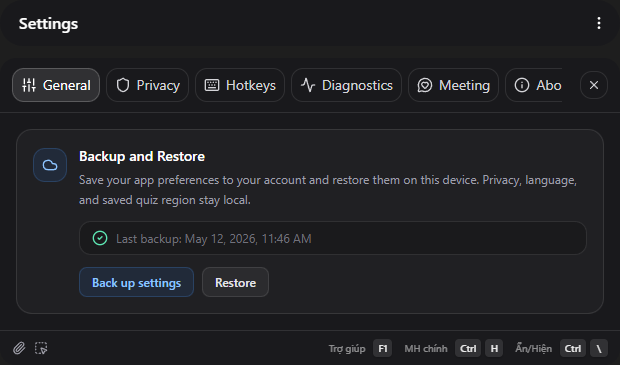
Hepi can save your settings to your account so you can restore them later — on the same device after a reinstall, or on a different machine you use.
Back up your settings
- Open Settings.
- In the General tab, scroll to the Backup and Restore section.
- Click Back up settings.
- A confirmation appears at the bottom of the screen when the backup completes. The section shows the date and time of the last backup.
Restore your settings
Restoring overwrites the settings on your current device with what was saved in your backup.
- Open Settings.
- In the General tab, scroll to the Backup and Restore section.
- Click Restore.
- A confirmation prompt appears — click Restore again to proceed, or Cancel to go back.
- Settings apply immediately. No restart required.
What gets saved
Backup covers the settings you configure in the General, Hotkeys, Meeting, and Quiz tabs:
- Window opacity, always-on-top, and Topmost Keeper
- AI model selections for chat and quiz
- Thinking mode toggle for the chat assistant
- Quiz mode (Fast or Consensus) and model overrides
- Text Capture on/off, auto-submit, and notification settings
- Keyboard shortcuts
- Meeting output preferences, active profile, and all profile contexts
What does not get saved
A few settings stay local to each device and are never overwritten by a restore:
- Privacy settings — screen recording protection and related options
- App language — stays as set on each device
- Saved quiz region — the last screen region captured for quiz use
- Onboarding and version state — internal flags that track your install history
If something goes wrong
“No settings backup found” — you have not backed up yet from any device. Click Back up settings to create the first backup.
“Invalid or incompatible backup” — the backup was created by an app version that is no longer compatible. Update Hepi and try again.
“AI model configuration could not be loaded” — Hepi could not reach its servers to verify which models are available. Check your connection and try again. Your settings have not changed.
Settings did not take effect — close and reopen Settings. If the problem continues, try backing up and restoring again.
Related pages
Last updated: 2026-05-12