

Safe Exam Browser
Block the SEB Lock Screen
How Hepi prevents the SEB LOCKED screen from appearing during your exam session.
What is the SEB lock screen?
Safe Exam Browser can display a full-screen red overlay - titled SEB LOCKED - whenever it detects a security violation during your session. Common triggers include switching users, enabling sticky keys, changing cursor settings, or failing to close a flagged application. Once it appears, the screen blocks all interaction until the exam quit password is entered.
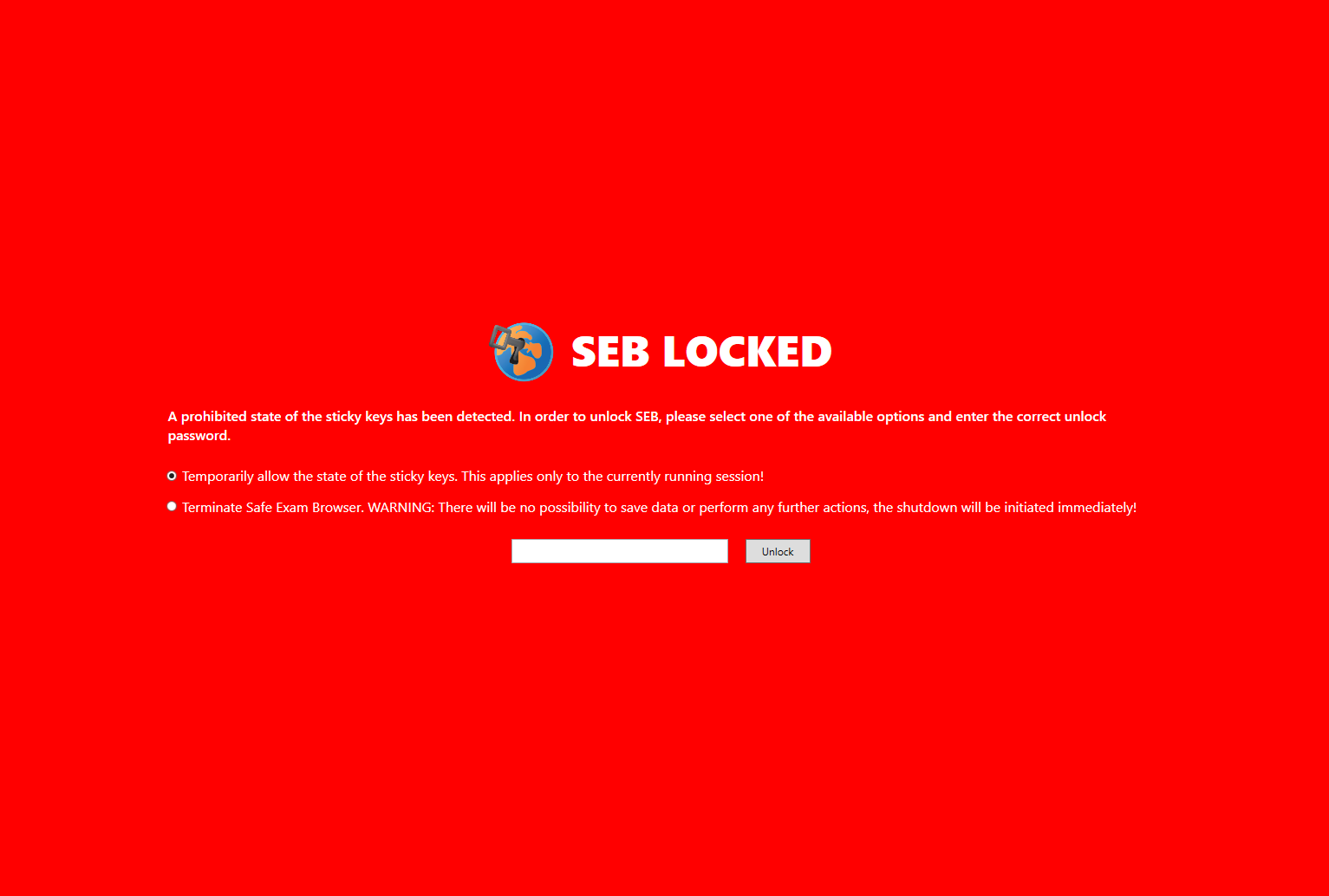
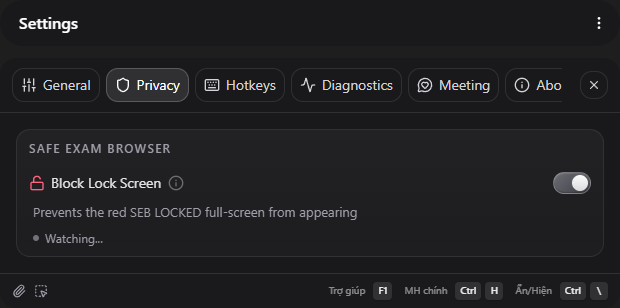
Hepi’s Block Lock Screen feature prevents this overlay from ever appearing. Enable it before your session starts and SEB’s lock screen triggers become no-ops.
How it works
When enabled, Hepi monitors for SEB starting up and applies a targeted change to the lock screen activation method inside the running SEB process. After that, any event that would normally trigger the lock screen - session changes, accessibility setting changes, display config changes, application termination failures - is silently skipped instead.
The change takes effect automatically once SEB’s browser is fully loaded. No manual steps are needed during the exam.
Requirements
- Pro or higher plan
- Administrator privileges — Hepi must be running as Administrator
- Enable the toggle in Settings → Privacy → Safe Exam Browser before launching SEB
Use alongside other SEB features
Block Lock Screen works best as part of a complete SEB setup:
- Block SEB Log Transmission — also blocks lock screen notifications sent to the exam server
- Prevent SEB From Closing Other Apps — keeps Hepi and other tools running, which reduces the chance of a termination-failure trigger
- Unlock SEB Desktop — for isolated desktop sessions, combine with this feature for full coverage
Related pages
Last updated: 2026-05-21